Функцийг ашиглахын тулд Google Play-ээс аппын бета хувилбарт бүртгүүлж, Pixel Launcher-ийг сонгох шаардлагатай.
Google-ийн Create My Widget функц Pixel 10, Pixel 10 Pro, Pixel 10 Pro XL, Pixel 10 Pro Fold болон эдгээртэй дүйцэх Pixel 11 загваруудад нэвтэрчээ. Үүнийг ашиглахын тулд 18 нас хүрсэн, төхөөрөмжийн үндсэн хэлийг англиар тохируулсан бөгөөд АНУ, Их Британи, Австрали, Канад эсвэл Энэтхэгт байх шаардлагатай. Google уг функцийг тавдугаар сард I/O арга хэмжээнд танилцуулж, арваннэгдүгээр сарын эхээр Android-ын шинэчлэлд оруулахаа зарласан юм.
Хэрэглэгч Google Play-ээс Create My Widget аппын бета хувилбарт бүртгүүлж, шинэчлэлт хийх товч гарч ирсний дараа аппыг шинэчилнэ. Дараа нь үндсэн дэлгэцийн сул хэсгийг удаан дарж, “Widgets” цэснээс “Create” сонголтыг нээнэ. Функц ажиллахын тулд стандарт Pixel Launcher ашиглах ёстой бөгөөд өөр launcher суулгасан бол түр хугацаанд Pixel Launcher рүү шилжих шаардлагатай.
Апп нь Gemini болон Workspace-ийн холболтыг идэвхжүүлсэн тохиолдолд хэрэглэгчийн тухай мэдээлэлд тулгуурлан виджетийн санал гаргаж, бэлэн загваруудаар өөрчлөн үүсгэх боломж олгоно. Мөн “Describe your widget” хэсэгт хүссэн виджетийн үүрэг, харагдах байдлыг бичиж эхнээс нь бүтээж болно. Гэхдээ одоогоор Google хайлтаар олдох мэдээлэл, байршилтай холбоотой өгөгдөл, системийн функцийн товчлол, Gmail болон Google Calendar-ын мэдээллээр хязгаарлагдана.
Үүсгэсэн виджетийг үндсэн дэлгэцэд байрлуулах, дараа нь удаан дарж “Settings” цэсээр засварлах боломжтой. Функцийн боломж хязгаартай ч хэрэглэгч өөрийн хэрэгцээнд нийцсэн виджетийг загвар сонгох эсвэл хүсэлтээ бичих замаар үүсгэх боломжтой.
Дэлгэрэнгүйг эх сурвалжаас харах
↓Эх сурвалжийг нээх ↓
Heads-up: If you’ve got a flagship Pixel phone from the past couple years, one of the most interesting Android features to arrive in ages is now officially available for you — but it’s up to you to find it.
The feature of which we speak is a snazzy little somethin’ called Create My Widget. Google first announced it way back at its I/O conference in May, then announced it as part of an incoming Android update a couple weeks ago, in early November. But in typical Google form, most of us mere mortals still don’t see it in front of us.
What can we say? ‘Tis the Google way. The good news, though, is that you can force the system to show up for you this instant with a handful of super-simple taps — and once you do, you can start thinking through all the Android widgets you’ve wished for but never quite found and start making ’em for yourself while barely lifting a finger.
Lemme show ya how to get going.
[Get Googley tips in your inbox with my free Android Intelligence newsletter. One new and useful thing to try every Friday!]
Create My Widget without the wait
First things first, let’s get Create My Widget up and running on your Pixel, shall we?
In order for this to work, you’ll need — deep breath… — a Pixel 10, Pixel 10 Pro, Pixel 10 Pro XL, Pixel 10 Pro Fold (gesundheit!), or any of the equivalent Pixel 11 models. And you’ll need to be at least 18 years old, for some reason, and using English as your primary device language in the US, the UK, Australia, Canada, or India.
Capisce? Capisce. Provided that describes you, your mission, if you choose to accept it, is to pick up your Pixel, open up the Play Store page for the Google-made Create My Widget app (which will likely only work for you if you’re signed in and using a device where the app is available), and opt yourself into its beta version. You can also do that directly on this page, if you’d rather.
Once you’ve finished that, you’ll need to wait anywhere from a few to several minutes for the system to add you in as a confirmed beta user. Keep checking the app’s Play Store page; once it stops telling you it’s in the midst of opting you into the app’s beta channel and instead shows you a button to update the app, you can tap that button, give yourself a pat on the back, and proceed.
All that’s left is to head back to your home screen, press and hold on any open space, and select the “Widgets” option in the menu that appears. (Note that you will need to be using the standard default Pixel Launcher in order for this to work. If you’re using a third-party Android launcher, you’ll have to switch back to the Pixel Launcher at least temporarily in your system settings in order to find this feature and create any custom widgets.)
Provided everything went through as expected, you should now see a new “Create” button at the top of the widget-selecting panel that appears next.
JR Raphael, Foundry
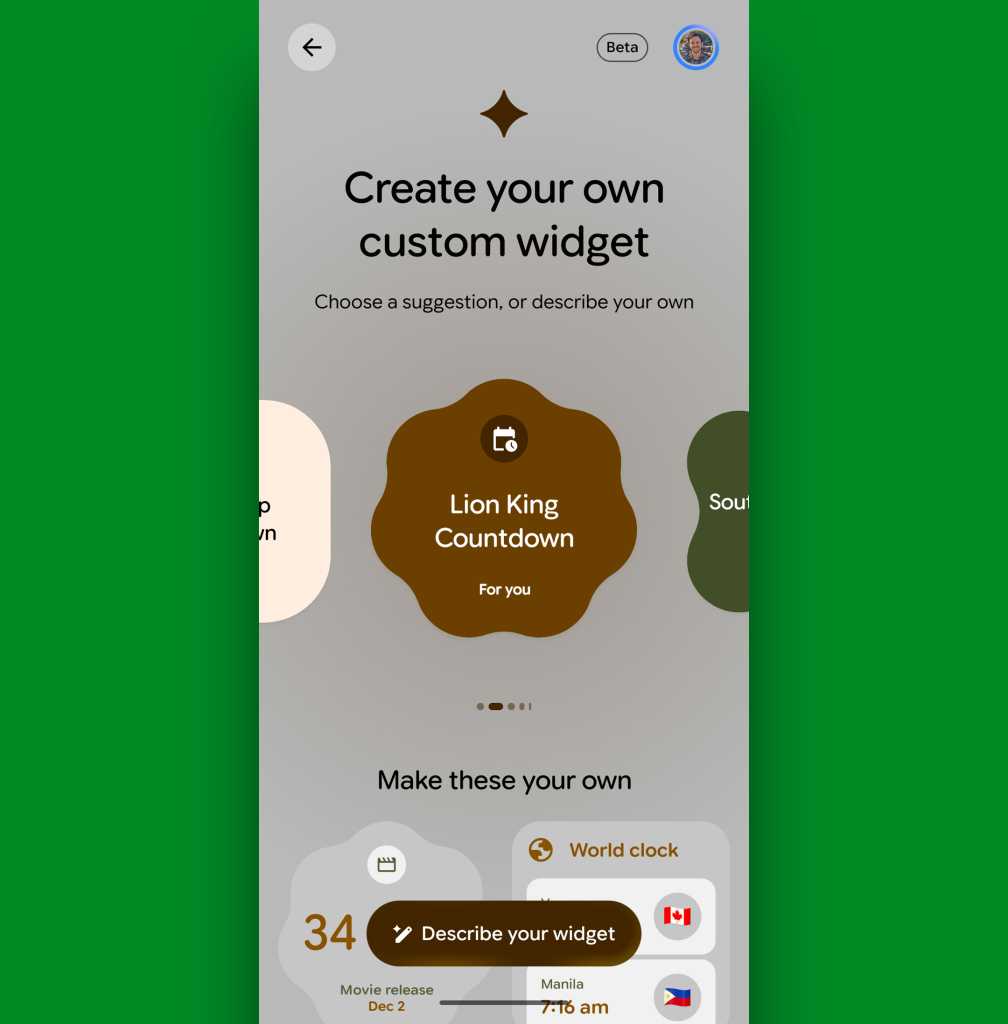
Tap that, and you’ll find yourself facing the interface for creating whatever widget you want.
JR Raphael, Foundry
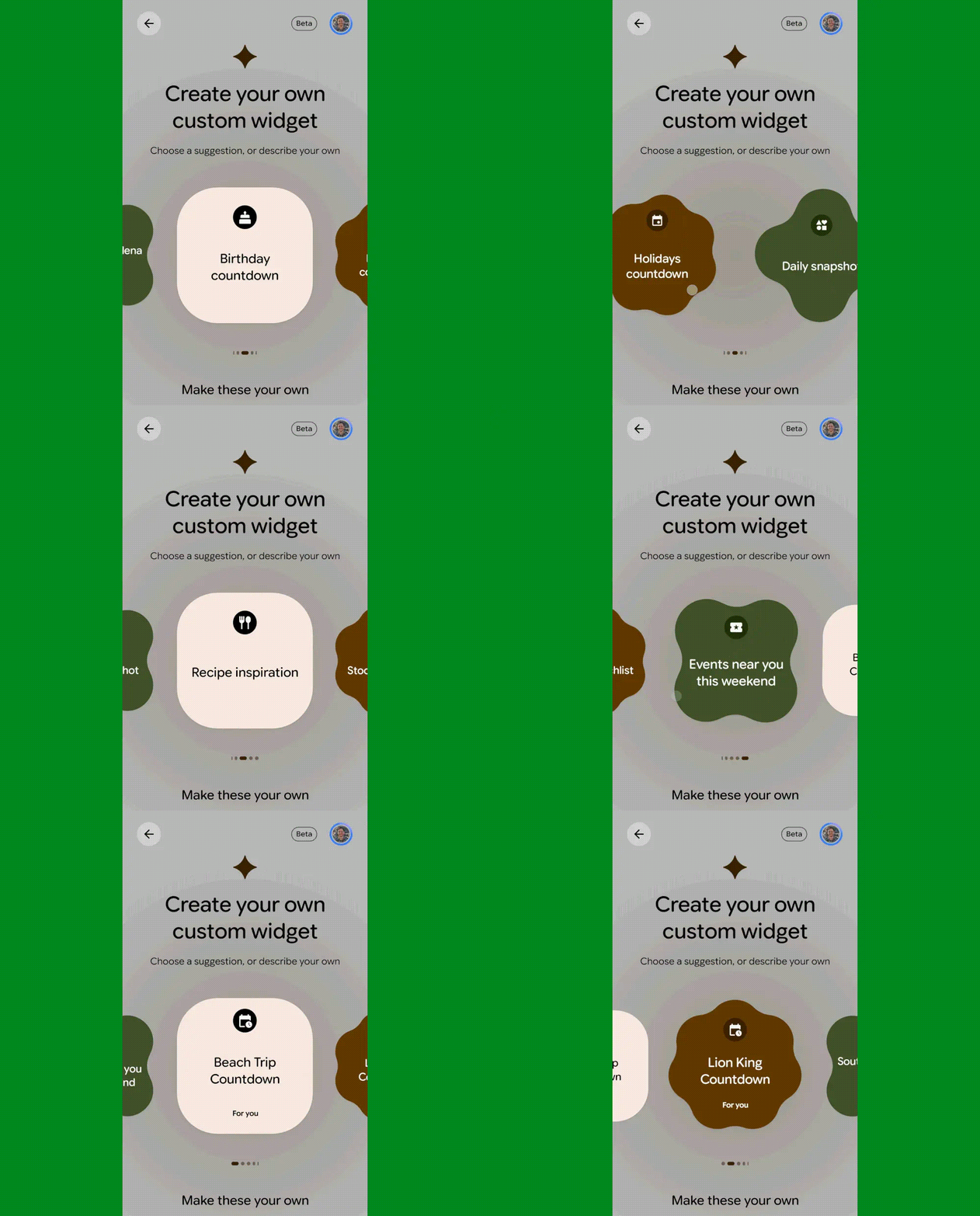
From here, you can take a few different paths. Google will automatically suggest a series of widgets at the top of the screen, based at least in part on things it knows about you (assuming you’ve opted into various Gemini-Workspace connections) — so scroll through those, to start, and see if any potentially useful possibilities jump out at you.
JR Raphael, Foundry
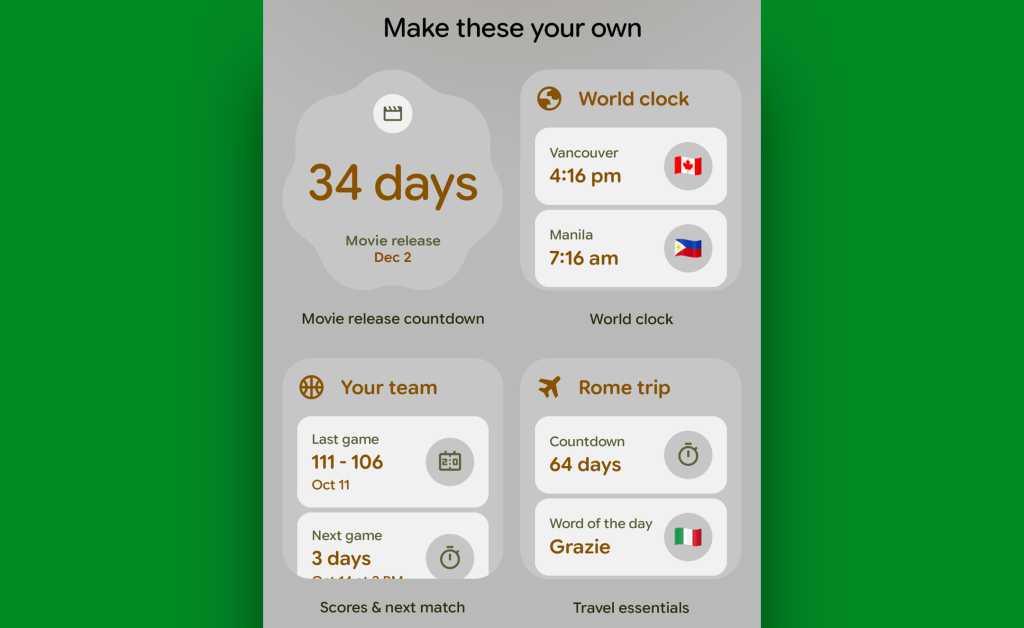
Beneath that, you’ll find a handful of other ready-made recipes for custom widget creation. You can tap any of those to use it as a starting point, then follow the prompts that appear after to customize and control exactly how the widget turns out.
JR Raphael, Foundry
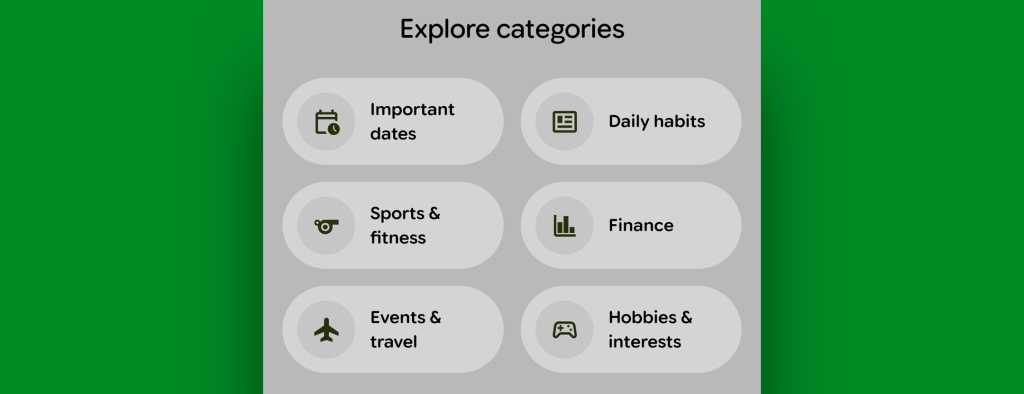
Beneath that, you’ll see some categories with even more starting-point templates to peruse. You can tap on any of ’em to see the suggestions within and use those to get your journey going.
JR Raphael, Foundry
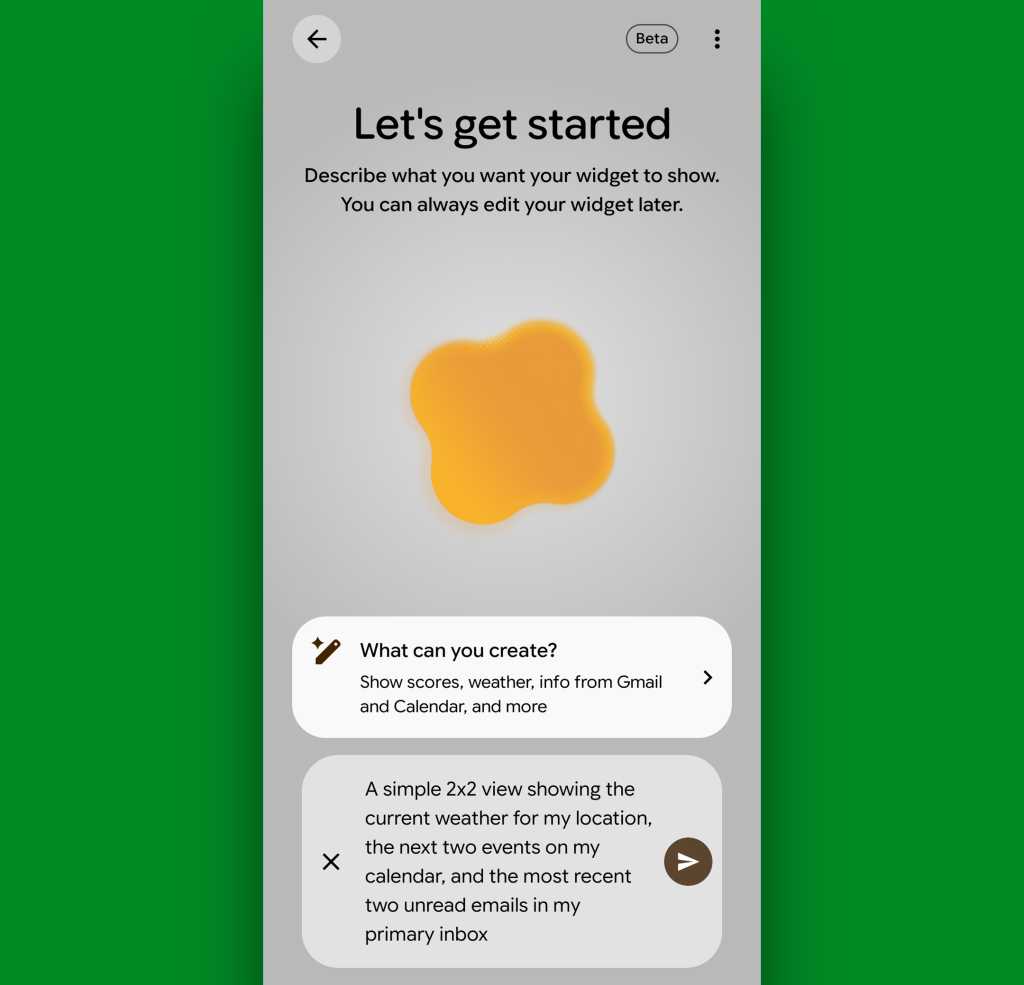
And last but not least, you can use the “Describe your widget” button at the bottom of the main Create My Widget screen to start from scratch and simply say what it is you want your widget to do and how it should look. Just keep in mind that the options are relatively limited, at least for the moment: Your custom widgets can involve only data accessible via a standard Google search (like stocks, scores, and so on), data related to your location (like weather or nearby businesses), one-tap shortcuts to existing system functions, and info connected to your Gmail inbox and Google Calendar agenda.
JR Raphael, Foundry
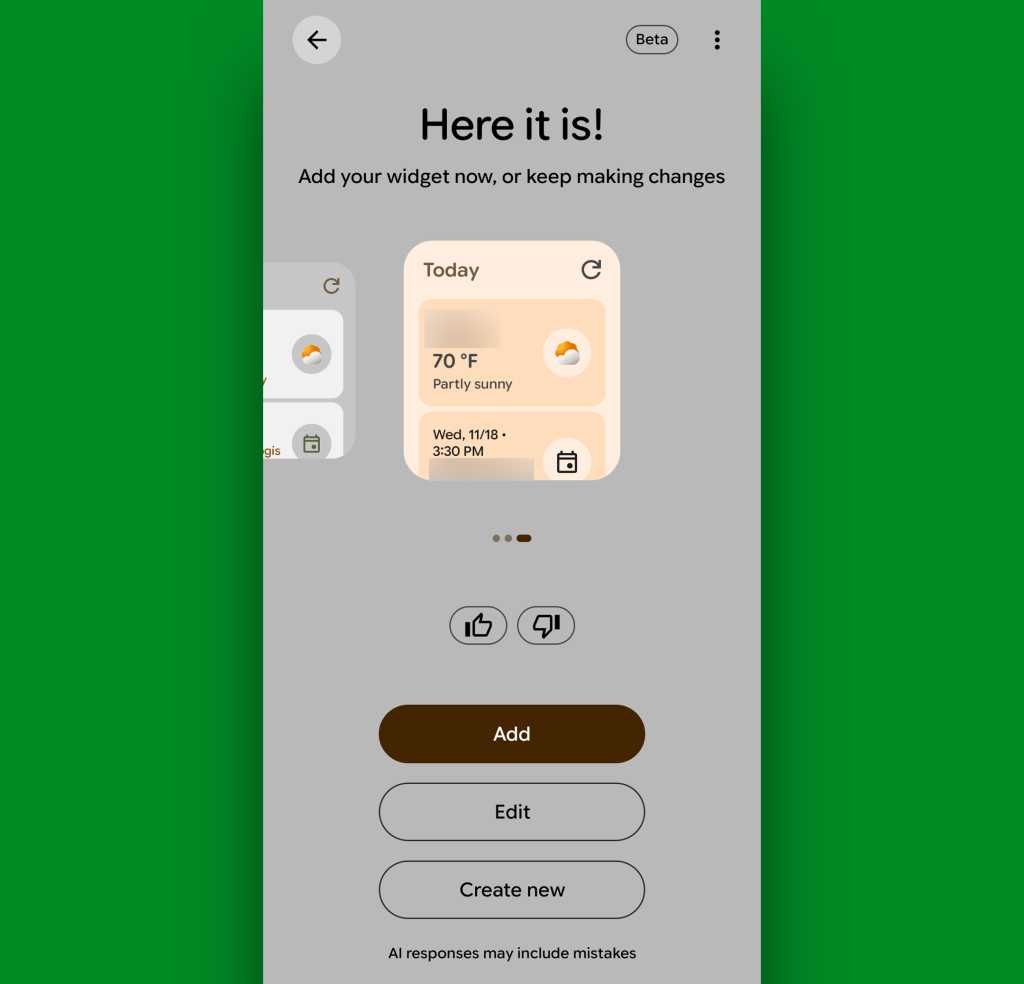
Cook up any combination you like using those ingredients — or using the various premade starting point templates — and you’ll soon see your creation, ready to be plopped anywhere you like on your home screen. Once your widget’s made, the system will prompt you to add it or edit it further, if you aren’t entirely thrilled with the results.
JR Raphael, Foundry
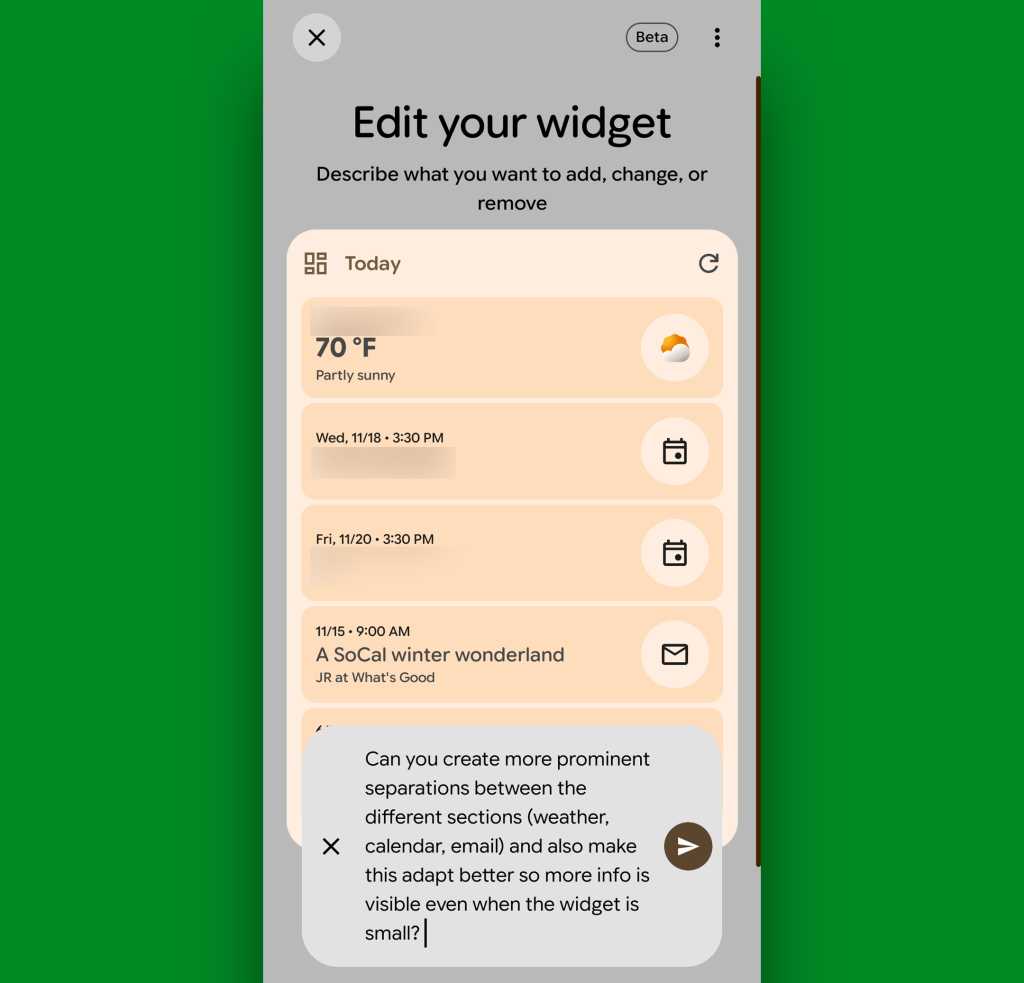
You can also edit your widget later by pressing and holding it on your home screen and then selecting “Settings” from the menu that pops up.
JR Raphael, Foundry
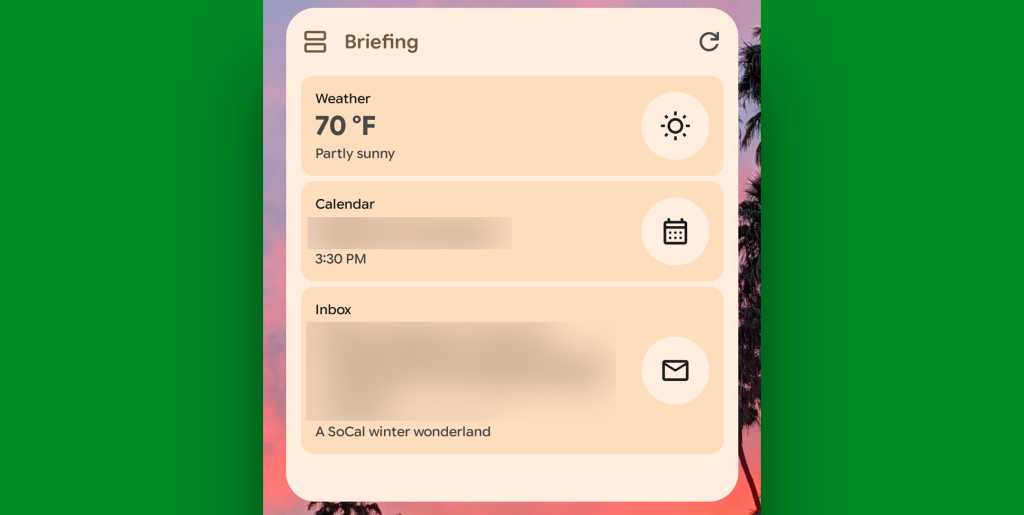
The system is by no means perfect, as you can tell — and there’s definitely a firm ceiling on what it can accomplish — but it’s a powerful new option, even so, and a fun balance of function and approachability to explore.
JR Raphael, Foundry
And hey, who knows? Even with this current framework, you might just find yourself creating exactly the widget you’ve always wanted for personalized productivity perfection.
Keep the next-level knowledge coming with my free Android Intelligence newsletter — a single new and useful tip, directly from me to ye each Friday.